This article was published in 2020. Platform features may have changed since then.
We have prepared a step-by-step guide to using Instagram Shopping, also known as Shopping on Instagram, on your accounts. At Medyateji, we have collected the setup details of this feature in this article. It is meant for people with business accounts, and e-commerce site owners can use it to tag products.
Step 1: Check whether your business and account meet these requirements
Your business must be located in Canada, the US, Puerto Rico, the UK, France, Germany, Italy, Spain, Sweden, the Netherlands, Switzerland, Ireland, South Africa, Belgium, Austria, Portugal, Poland, Greece, Cyprus, Denmark, the Czech Republic, Romania, Norway, Hungary, Bulgaria, Croatia, Finland, Latvia, Lithuania, Slovenia, Luxembourg, Brazil, Argentina, Mexico, Peru, Uruguay, Paraguay, Malta, Ecuador, Panama, Belize, the Dominican Republic, Australia, New Zealand, Japan or Korea.
If your business is located in Turkey, Egypt, Israel, Algeria, Estonia, French Guiana, Morocco, Réunion, Slovakia, Bolivia, Chile, Colombia, Costa Rica, Guatemala, Guadeloupe, Guyana, Martinique, Suriname, Hong Kong, India, Indonesia, the Philippines, Singapore, Taiwan, Thailand, Malaysia or Mayotte, the feature is being rolled out gradually in those countries. [UPDATE: As of September 20, 2020, Instagram has activated this feature in Turkey. To get consulting support, please fill out the Get a quote form.]
Your Instagram account must also primarily represent a business that sells physical goods. The account must be converted to a business profile, and your business must comply with Instagram's Commerce Policies. Your Facebook business Page cannot have country or age restrictions, and the Message to Purchase feature is not supported.
Your Instagram business profile must be connected to a Facebook catalog. You can get consulting support from Medyateji to create your Facebook catalog and connect it to your Instagram business profile.
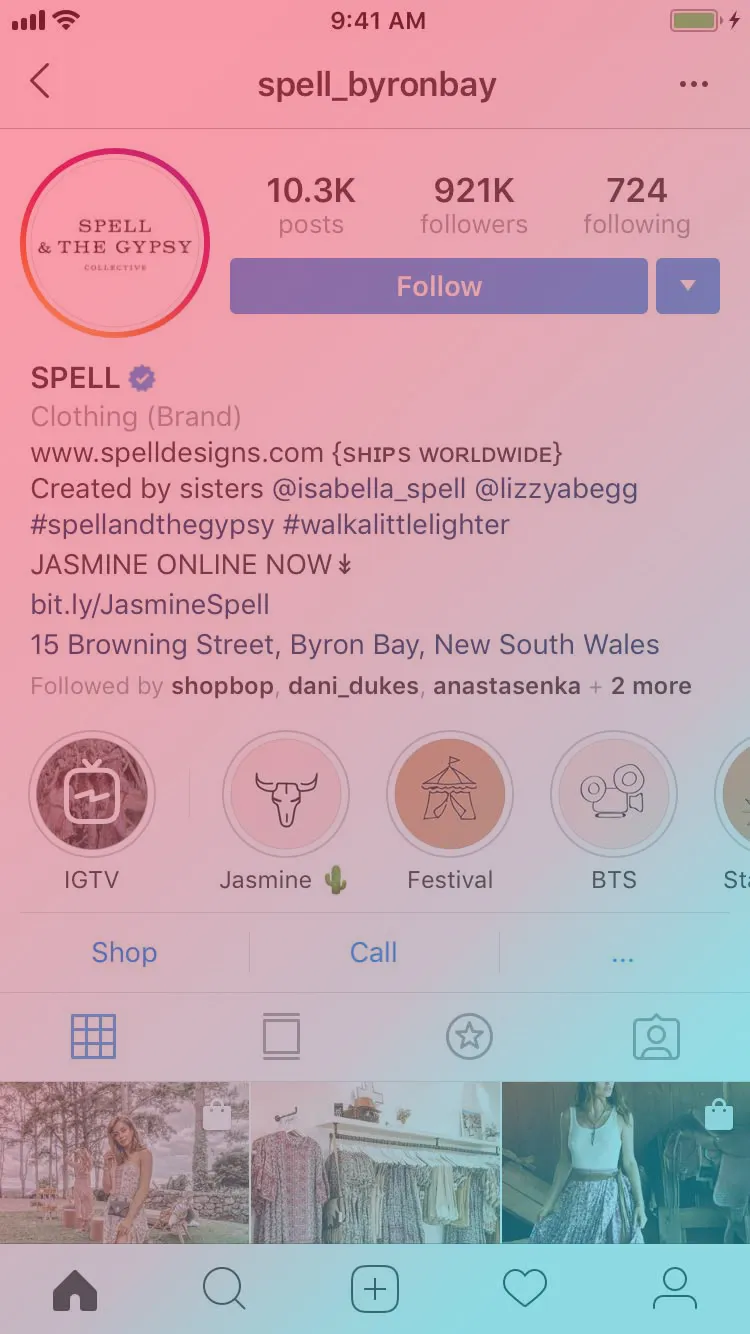
Step 2: Connect your Instagram business profile to a Facebook catalog
There are two ways to connect your Instagram business profile to a Facebook catalog.
Option A: Add a shop section to your Facebook Page
- On your Facebook business Page, click the Shop tab. If you can't see the Shop tab, you can switch your Page template to the Shopping template. If you accept the Merchant Terms, click Create Shop.
- Enter your business address and click Next.
- Select your currency and enter the email address associated with your business Page. Click Next. Your currency may be selected automatically based on your Page's address. This currency applies to all of your products and can't be changed without deleting the shop and creating a new one.
- For each state where your business operates, add your state tax registration number. Click Finish.
- Add products to your shop.
Option B: Use a catalog in Business Manager
Go to the Business Manager account that owns the Facebook Page connected to your Instagram business account. You can't do this if your Business Manager account only has access to the Facebook Page. Note: You can't transfer a Page from one account to another Business Manager account. However, if a business removes a Page, another business can add that Page. To add a Page, you must also be an Admin of that Page. If you are not an Admin of the Page, you need to request access to it.
In your Business Manager account, create a new catalog to use with Shopping on Instagram, or find an existing one. Note: The Business Manager account must own the catalog or have access to it. If the catalog you want to use is in another Business Manager account, make sure the two Business Manager accounts have a partner relationship.
Step 3: Your account will be reviewed
Once you complete one of the options above, your Instagram account will be automatically reviewed for access to the shopping feature. If you are creating a new catalog, your catalog must be approved before the account is automatically reviewed for shopping. The review process usually takes a few days, but at Medyateji we should remind you that it can take longer if your account needs a more detailed review.
Step 4: Add product tags or stickers on Instagram
Tips before you start:
Your account must be approved for Shopping on Instagram before you can tag products
Make sure you have the latest version of the Instagram app installed
To turn on product tags:
Go to your Instagram business profile
Tap the three dots (…) or the gear icon in the top right corner
Under Business Settings, tap Shopping
Tap Continue
Select the product catalog you want to use with Shopping on Instagram
Tap Done
Your business profile is now ready to tag products in Instagram posts and stories.
Step 5: Create a shopping post or story
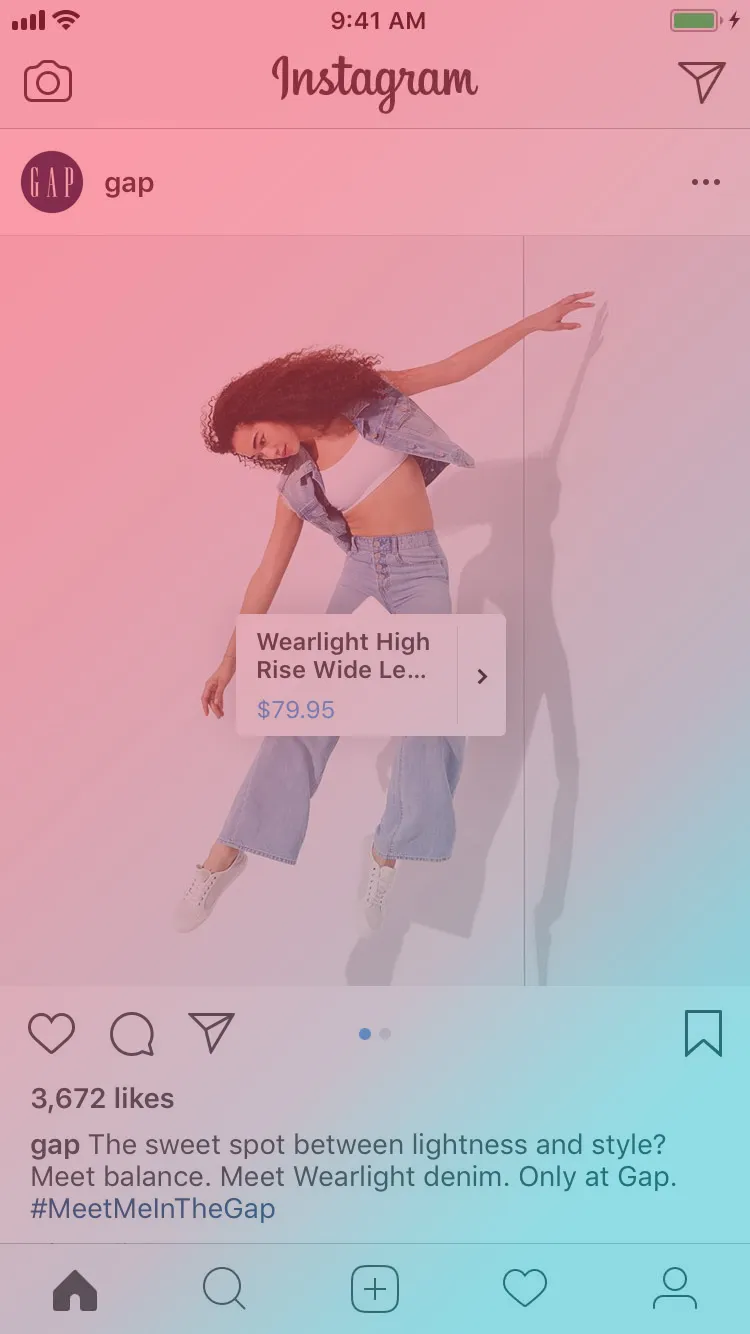
In Instagram posts, you can tag up to 5 products in a single-image post and up to 20 products in a multi-image post. Product tags in posts show the name and price of the products you tag. From your Instagram business profile, you can tag products in both new and existing posts.
In Instagram Stories, you can create one product sticker per story. Product stickers show the product name, and you can edit the sticker's color and text. You can't edit published stories. You need to delete and republish them.
Create a new story or feed post
In Instagram feed posts, tap Tag Products on the Share screen. In stories, tap the sticker icon and choose the product sticker option
Select the product you want to tag from your catalog and place your product tag or sticker near the product you're tagging.
Share your post or story
Product tagging and selling on Instagram
Medyateji
Frequently asked questions
Q: Can I tag both products and people in a post?
A: Currently, you can't tag people and products in the same post.
Q: Can Shopping on Instagram be used with paid ads?
A: No. Tagging products in feed posts and adding product stickers to stories is currently available only for organic posts. Businesses can't promote their shopping posts or stories.
Q: Can I preview feed posts and save them as drafts?
A: Yes. To preview posts or save them as drafts, click "Preview Tagged Products" or "Save Draft" on the post creation page, under "Tag People" and "Tag Products."
Q: Why doesn't the product I want to tag show up in my Instagram post?
A: Every product in a catalog is reviewed for policy violations. If you can't tag a product, it may not have been approved, or it may have been identified as a duplicate.
Q: What is the "View Shop" button on my business profile?
A: When you create a shopping post in your feed, a View Shop button will appear on your profile.
Q: What insights are available for shopping?
A: You can see engagement and click data for your shopping posts and stories. To see insights, tap View Insights on a shopping post, or swipe up on the screen where you view your shopping stories. You can also use Insights on your business profile to rank your top shopping posts by various metrics.
Q: I have a global audience. How should I use Shopping on Instagram?
A: Businesses should use their business profile insights to choose a catalog with the language and currency most relevant to the profile's audience.
[UPDATE: As of September 20, 2020, Instagram has activated this feature in Turkey. To get consulting support, please fill out the Get a quote form.]