
Google Analytics, the tool used to measure traffic on websites and apps, is moving to GA4, which introduces new metrics. So how do you migrate Universal Analytics properties to GA4? Find the step-by-step GA4 setup guide on the Medyateji Blog.
A new era is beginning for Google Analytics, the free web analytics service used to analyze website traffic and usage data. Are you ready? Google Analytics 4 is replacing Universal Analytics. All standard Universal Analytics properties will stop processing data on July 1, 2023. 360 Universal Analytics properties will stop processing data on July 1, 2024.
Google Analytics lets website owners track visitor behavior, identify traffic sources, measure engagement on their sites and optimize their marketing strategies. It can show what users do on a website, how much time they spend on which pages, which pages they leave from, and even which devices they use. This data helps website owners adapt better to their users' needs and behavior.
At Medyateji, we wrote this article as a guide for users who see the warning: "This property will stop processing data on July 1, 2023. Starting in March 2023, to continue measuring your website, migrate your original property settings to a Google Analytics 4 (GA4) property. Otherwise, these settings will be copied to an existing GA4 property for you by reusing your existing site tags."
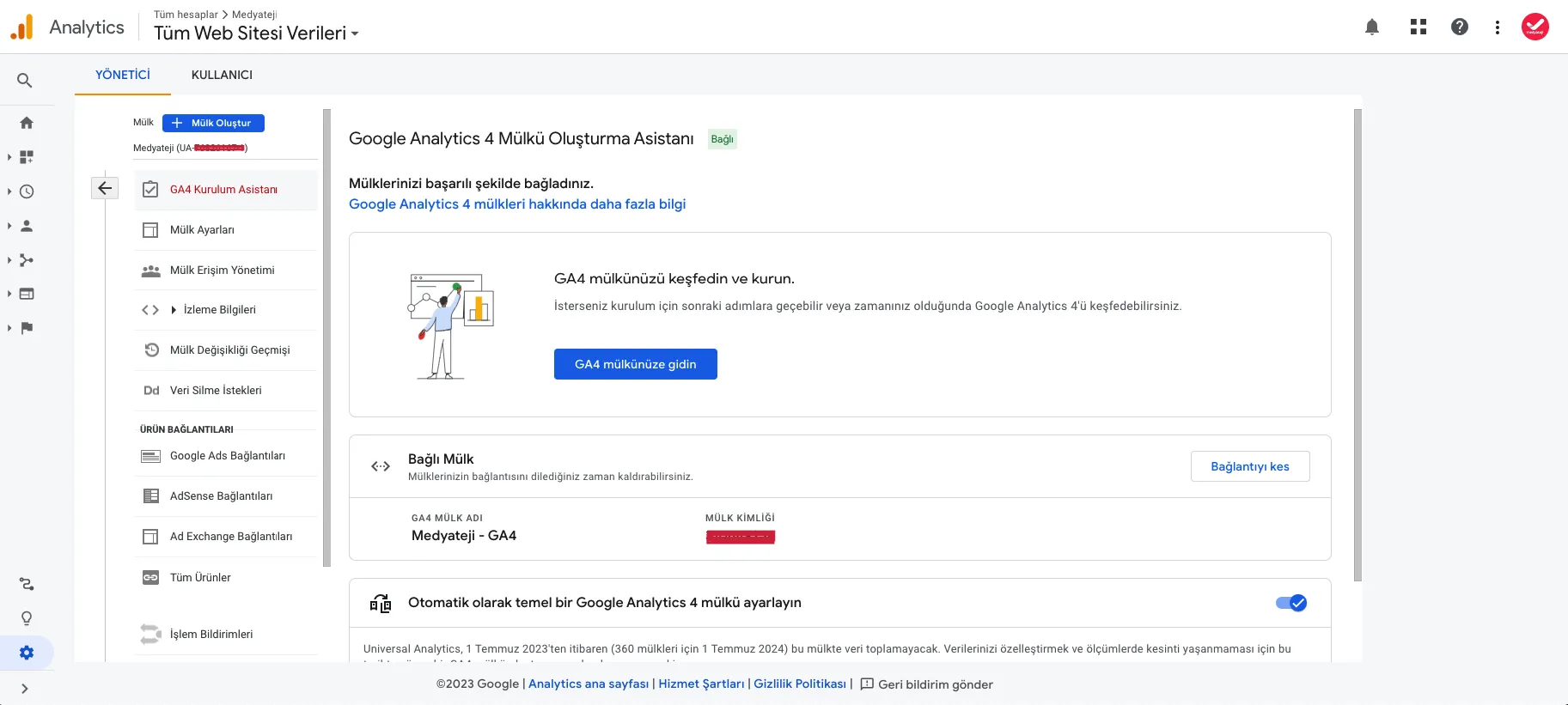
Step-by-step GA4 setup guide
- To use the GA4 Setup Assistant, you must have the Editor role for the account. Follow the instructions below to create your GA4 property. You can use this wizard whether or not your website pages have a Google Analytics tag (gtag.js or analytics.js), a Google Ads tag (gtag.js) or a Google Tag Manager container.
- Go to Google Analytics and click Settings > Admin at the bottom left.
- In the Account column, make sure the account you want is selected. (If you have only one Google Analytics account, it is already selected.)
- In the Property column, select the Universal Analytics property that is currently collecting data for your website.
- In the Property column, click GA4 Setup Assistant. It is the first option in the Property column.
- Under "I want to create a new Google Analytics 4 property," click Get started.
- In the "Create a new Google Analytics 4 property" pop-up, you can choose one of the following options, depending on how your site is currently tagged:
- Create and continue. Click this button to continue to the Google tag creation page (step 7).
- Create property. If you see this option, Analytics can reuse your existing Universal Analytics tags for your GA4 property. Analytics creates a connected site tag between your Universal Analytics and GA4 properties. Select this option and go to the "Next steps for your new GA4 property" section (below).
- Note for advanced users: This option applies standard data collection to your GA4 property. If you have implemented custom tags for your UA property, review these points to learn about additional steps.
- On the Google tag creation page, select the option that best describes your situation and follow the instructions to finish creating your new GA4 property.
That's all there is to it. For more information and consulting, you can get one-off project support. Medyateji sets its prices on a standard pricing principle for all of our clients. If you like, you can call us at 0850 302 6 456 to get more information.